
Using the FluidityIQ administration features
A step-by-step guide to managing your users and account details
All users have access to the administrative module and can open the module by clicking on the icon in the upper right-hand corner of the application after logging in (see below). The admin module will enable all users to see their usage and manage their settings.
Designated admin users at each account will also have the ability to manage their FluidityIQ subscription, see usage by team, view spending of their users by Private Innovation Library created, manage team access and create and view API keys for Connected Apps, such as for connecting an AI assistant, such as Claude, to the FluidityIQ semantic engine via Model Context Protocol (MCP).
There may be more than one admin user per FluidityIQ account.
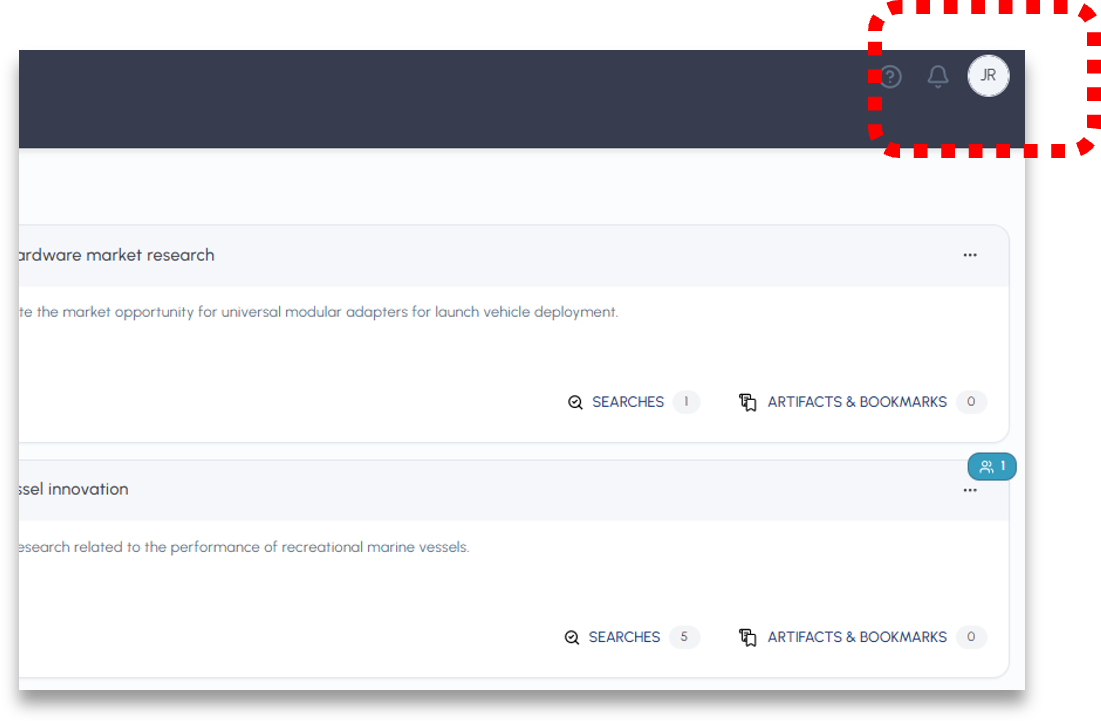
Access the admin screen by clicking on the icon shown
User Profile and Settings
Clicking on Settings will bring up the user’s profile information and provide the ability to edit their email, name, etc. The user may also change their password and set up an authenticator app for multi-facet authentication.
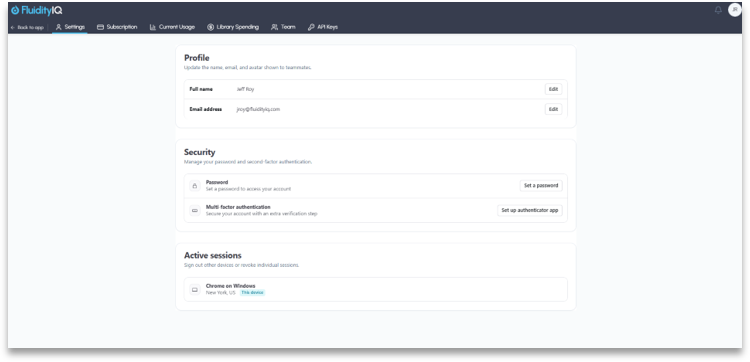
The Settings screen allows users to manage their access
Subscription Information
Admin users will have the ability to view their subscription information for both pay-as-you-go and unlimited usage accounts for the FluidityIQ Platform as well as usage for Connected Apps. All invoice status is available here as well. To access subscription details imply click on the Subscription menu option.
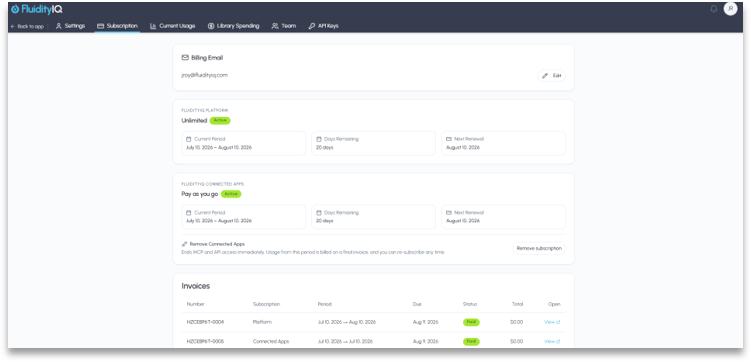
Use Subscription screen to view subscription details and invoices
Viewing Current Usage
Clicking on Current Usage will expose summary level usage data for the accounts’ collective team. This will show the number of searches created as well as how many times the Deep Research Agent has been utilized. Admin users will also have the ability to view usage for all Connected Apps, such as from an MCP subscription or by accessing reports via a FluidityIQ partner platform and will have visibility into total spending for the period.
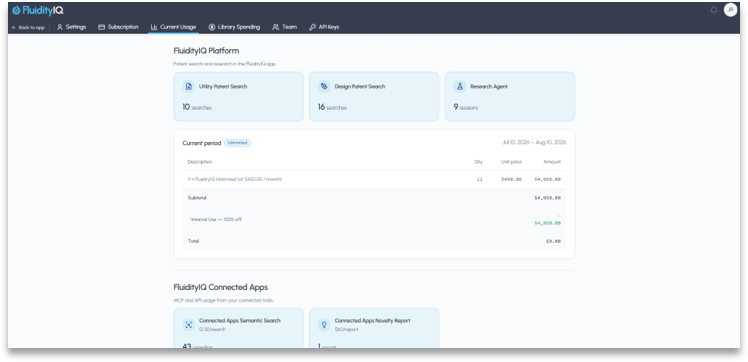
Use Current Usage screen to view overall billing for the period.
View Spending by Private Innovation Library
Admin users may view total spending by Private Innovation Library (“PIL“ or “Library”) by clicking on the Library Spending option. Non-admin users will be able to see their own spend by library. This allows FluidityIQ customers to have visibility into their usage spending and in the case of our law firm customers, get visibility into the exact billing by client matter number.
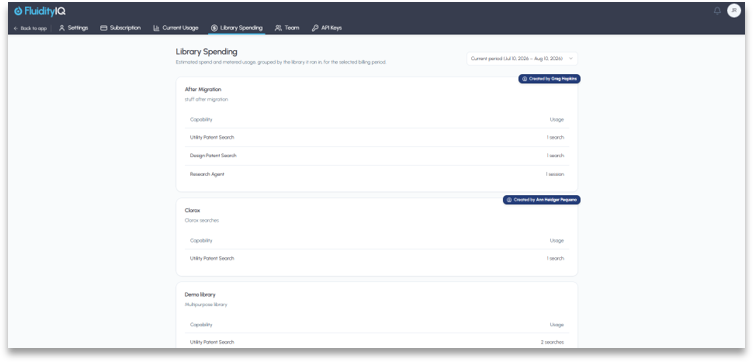
Use Library Spending screen to see spending and usage by PIL
Managing Your Team
You may add additional team members to your account simply by clicking on the Team option in the admin menu. This provides visibility into all users, their activity level as well as provides the ability to invite new team members, remove team members or edit your team name.
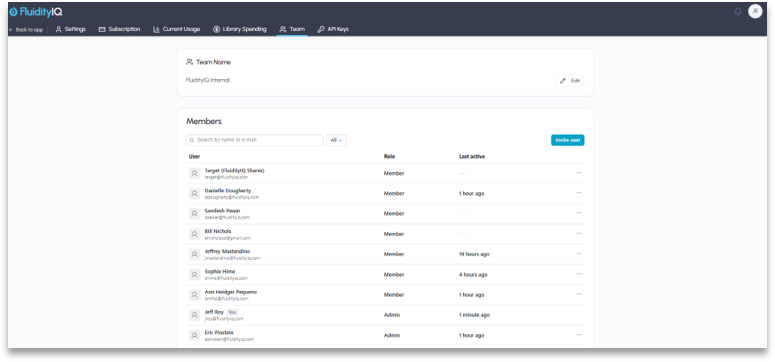
Manage all team members and user accounts from the Team page
API Keys for Connected Apps
For accounts that include a subscription to FluidityIQ Connected Apps, such as if those connecting their AI assistant to the FluidityIQ semantic engine via Model Context Protocol (MCP) or those accessing reports via a FluidityIQ partner platform, admins may manage their API keys from by clicking on the API Keys option in the admin menu.
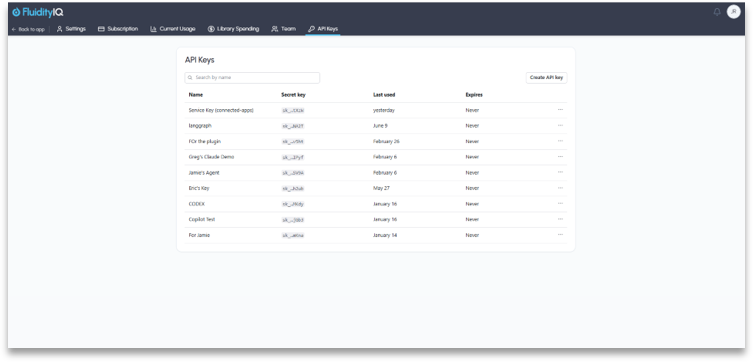
Use the API Keys option to manage access to Connected Apps
Please reach out to support@fluidityiq.com for more assistance on using the administrative features of FluidityIQ.